An invitation built around your event
Start with the details your guests need: the event name, host, date, time and location. InvitationMaker.net brings these details together with your design preferences in one place.
Use the AI invitation generator to explore a visual direction, then check the words before sending your invitation. A finished-looking design is not a substitute for checking the host's name, the year, the time and the address.
Give every important detail a place
Enter the event name and host separately, then add the date, time and location. For a birthday, keep the child's name and age in the event title; the host may be someone else. Clear inputs make it easier to spot a missing name or incorrect detail when you review the design.
Open the composer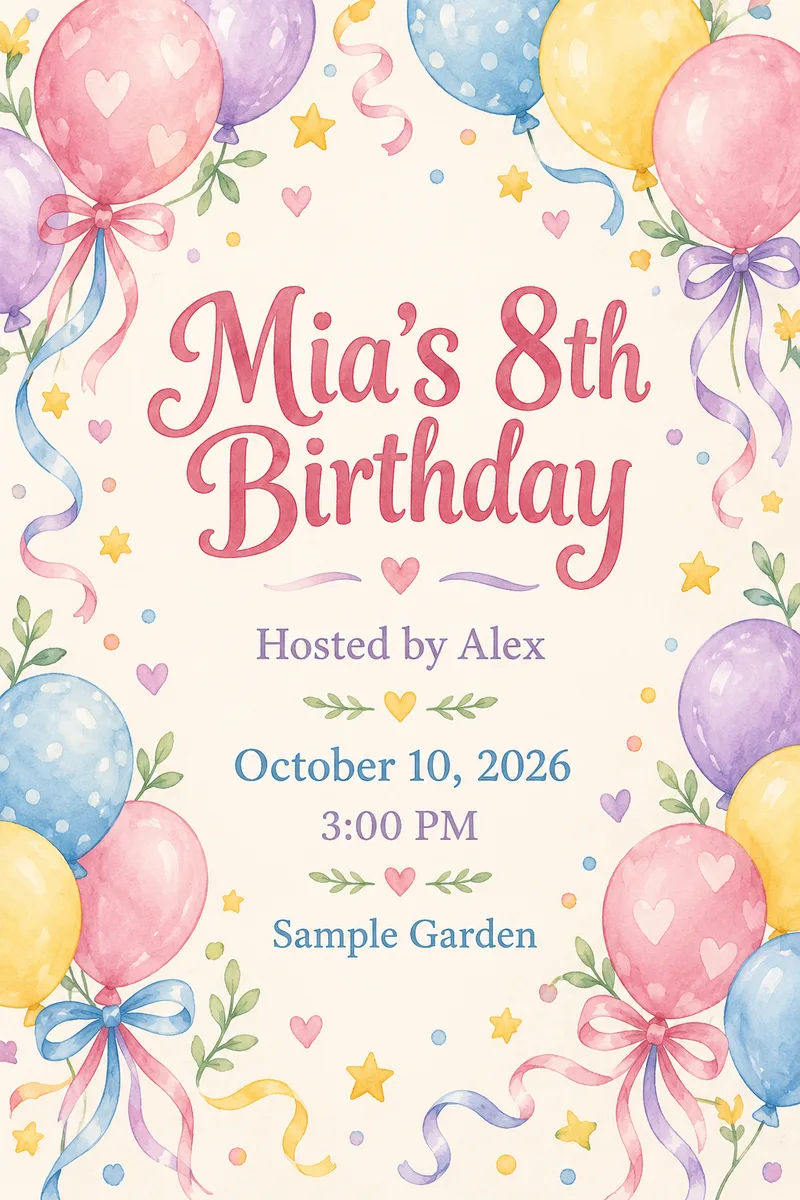
Match the occasion, theme and style
Choose the event's occasion, the subjects you want in the artwork and the way they should be drawn. Balloons describe a theme; watercolor describes a style. Add a short note about colors or mood without repeating or changing the event information.
Open the composer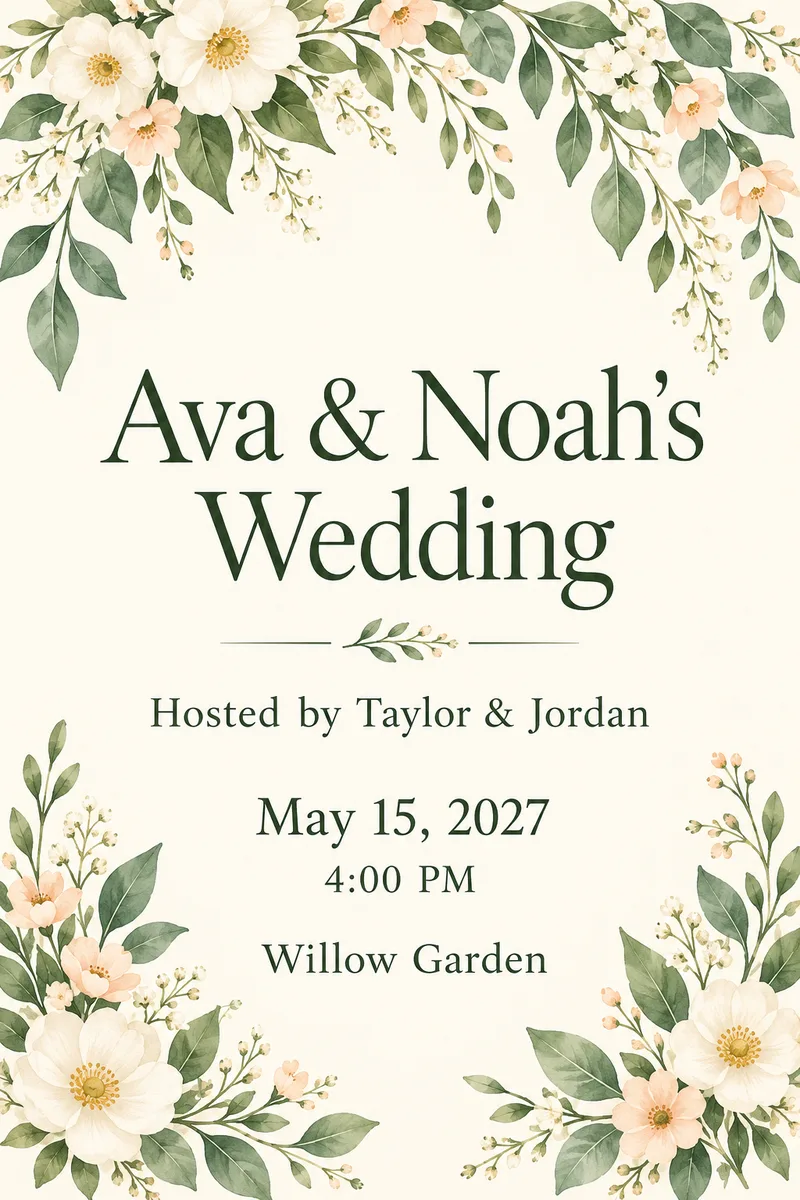
Correct the wording before you send it
Use Edit text to correct the event name, host, date, time or location. Save the changes before downloading. Want a different visual design instead? Regenerate is a separate action, so changing a time is not confused with asking AI for a new image.
Open the composer
The details stay at the center
A clear brief and a careful review matter as much as the artwork.
Separate names and roles
Keep the event name and host distinct, even when different people are celebrating and organizing.
Choose a visual direction
Combine an occasion, theme and style, with optional notes for the look you have in mind.
Review the version you download
Save text changes, then check the invitation again before choosing the file to send.
How to make your invitation
Start with your event details and finish by checking the saved design.
Create, review and download
- 01
Add your event details
Enter the event name, host, date, time and location. Choose a style, then add an optional occasion, theme or short design request.
- 02
Generate a design
Sign in before generating and review the displayed generation cost. After signing in, return to your details and choose Generate invitation when you are ready.
- 03
Check and edit the words
Read every event detail on the invitation. Open Edit text to correct a name, date, time or place, then save the changes. Choose Regenerate separately if you want a new visual design.
- 04
Download the saved version
Review the saved invitation once more, then download that version. Send the file yourself using your preferred messaging or email service.
Find a direction for your celebration
A birthday can call for balloons and cheerful color, a wedding for restrained florals, and a baby shower for gentle woodland illustration. Use the occasion to guide your choices rather than changing the information your guests need.
These images are illustrative designs with fictional event details. They are not results from your current session, screenshots of the tool, or proof of a particular model's output.
AI Invitation Maker FAQ
What information do I need to make an invitation?
Enter the event name, host, date, time, location and a valid style before generating. The host is a separate field, not a name guessed from the event title. Occasion, theme and additional design notes are optional.
What is the difference between an occasion, a theme and a style?
The occasion is the kind of event, such as a birthday or wedding. The theme is what appears in the artwork, such as balloons or flowers. The style is how the artwork looks, such as watercolor or minimal. Use additional requirements for colors, mood or other visual preferences.
Do I need to sign in before generating?
You can enter your details and choose a look before signing in. Sign-in is required to generate. Completing sign-in does not start generation automatically; return to your details and choose Generate invitation when you are ready.
Can I change just the time on my invitation?
Open the invitation's Edit text view, change the time and save. A text-only change does not request a new AI design. Check the other event details and download the saved version, not an unsaved preview.
What should I do if a name, date or other detail is wrong?
Check the invitation against the details you entered, including the spelling of names, the host, year, time and location. Correct the relevant text and save before downloading. Do not assume an attractive design means every word is correct.
How do I make sure I download the version I edited?
Save your text changes, review the saved invitation and check the version in the download window. If file preparation fails, retry the download for that saved version rather than generating a new design.
Does this tool collect RSVPs or publish an online invitation page?
No. This invitation-making flow ends with a file you download and send yourself. It does not collect guest replies, manage a guest list or publish a hosted invitation page.